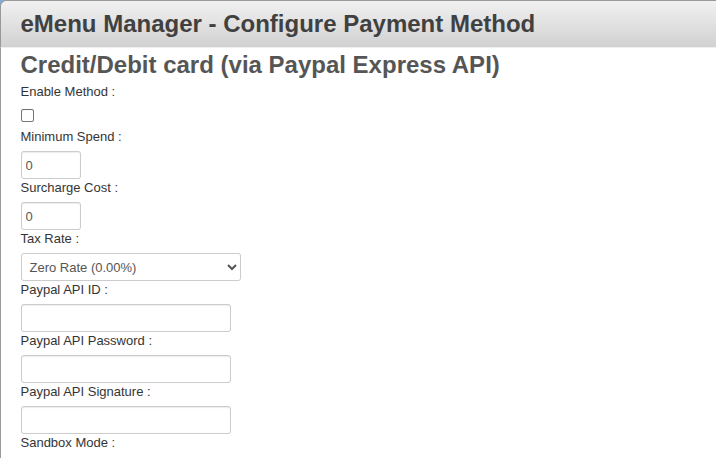
Important Notice Before Proceeding
- No longer recommended: Refunds cannot be processed directly through the website and must be done manually by logging into your PayPal account.
- Business Account Required: This setup will not work on a personal PayPal account.
- Stripe Alternative: Stripe is cheaper and automatically transfers your money directly to your bank account, whereas PayPal requires you to manually log in and transfer funds.
How to Link Your PayPal Business Account to Your Website
Prerequisite: Log in to your PayPal Business account via a PC or tablet. You must use the full desktop website, as these settings are not available in the mobile app.
Don't have one? You can create a new business account here.
Don't have one? You can create a new business account here.
- Click on your Name in the top right corner of the dashboard.
- In the dropdown menu, click on Account Settings.
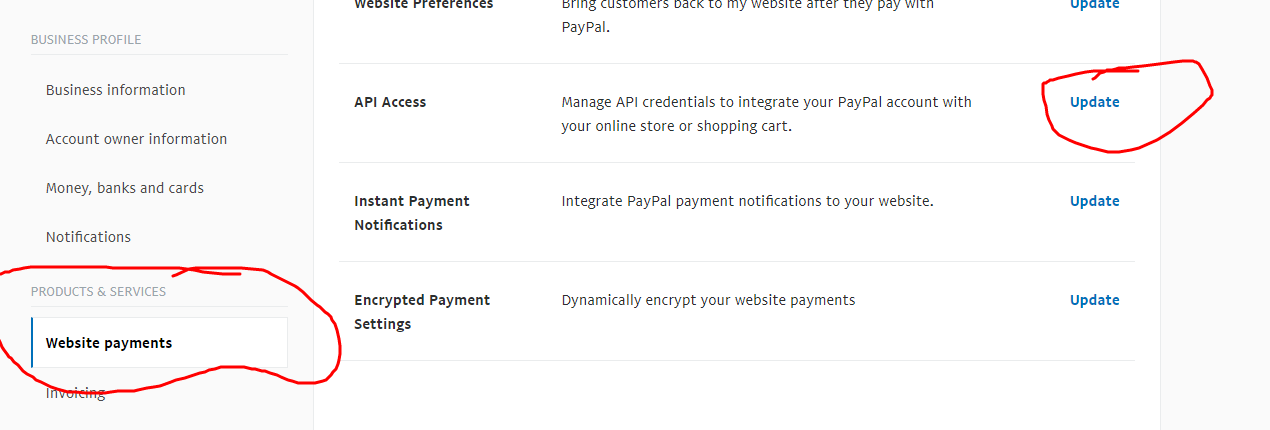
[Refer to Picture 1] - Click on Website Payments in the left-hand navigation menu.
- Find API access and click Update.
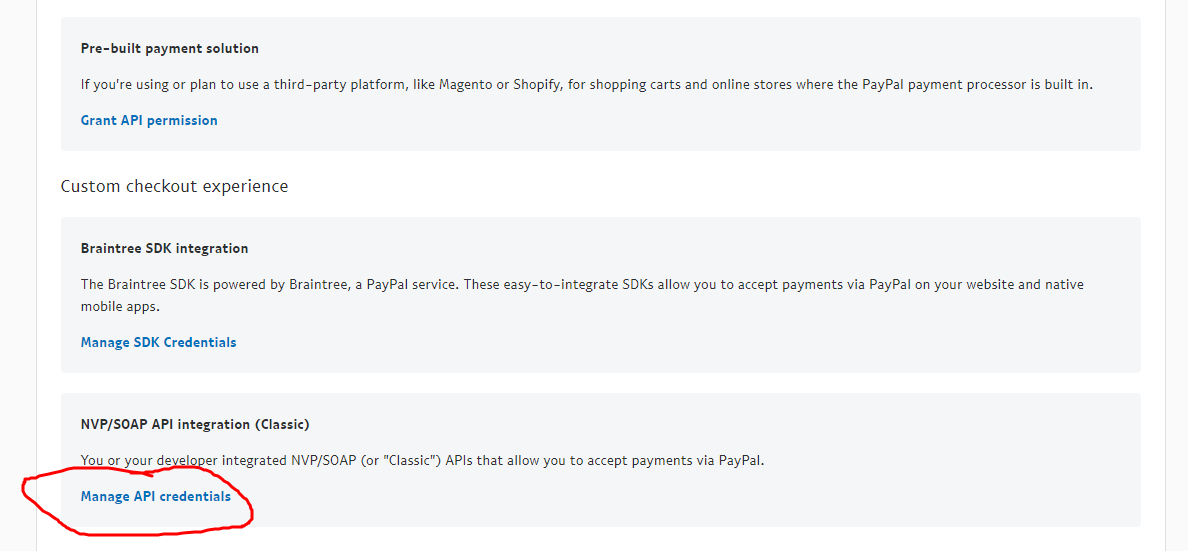
[Refer to Picture 2] - Under the "NVP/SOAP API integration (Classic)" section, click Manage API credentials.
[Refer to Picture 3] - Select Request API Credentials.
- Select Request API signature.
- Click Agree and Submit.
Next Step: Please secure and submit this information to our team so we can successfully link your website.
Account Setting Page:
API Access Page:
Download Credentials Page
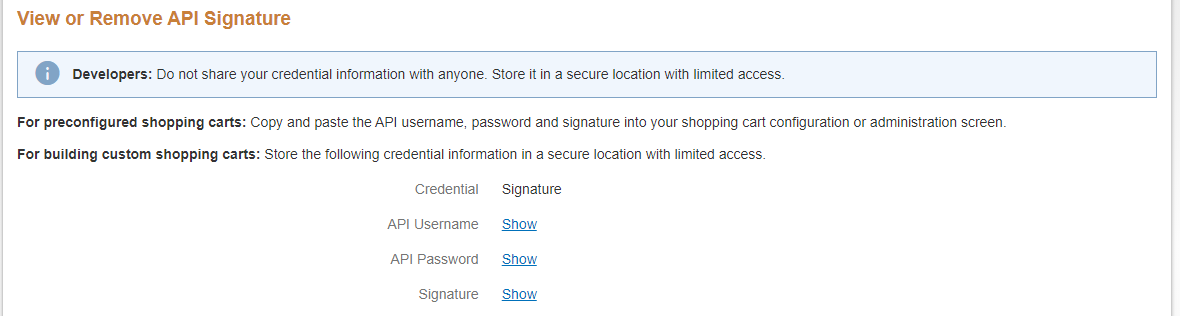
Click show and copy and paste code into the Paypal payments section on your website, click enable and click save.
(Or Alternative email us the code and we will upload them on your behalf)